
5. Home screen
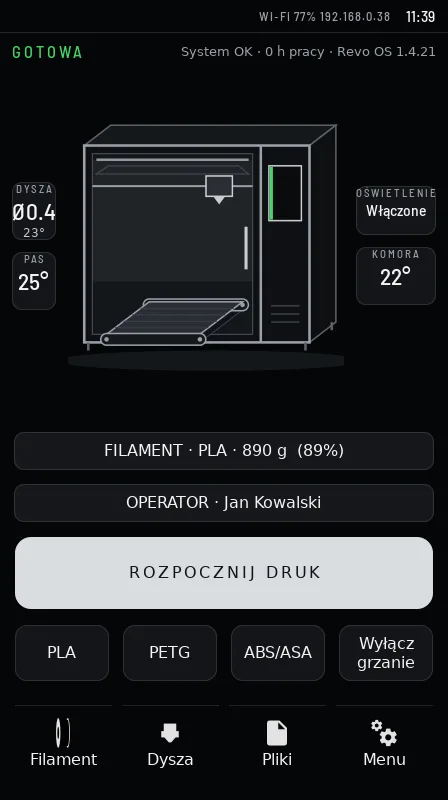
- Top bar: state (READY, PRINTING, PAUSED…), connection (LAN / Wi-Fi with signal strength and IP address), clock. Below it “System OK”, working hours (h) and the Revo OS version.
- SCHEMATIC VIEW – a drawing of the machine with three hexagons below: NOZZLE, BELT/BED and CHAMBER. SET 215° is the target temperature, OFF – heating off, PASSIVE – chamber without a heater. Tap the nozzle or belt/bed to set the temperature.
- TELEMETRY – diameter of the installed nozzle (e.g. Ø0.4) and LIGHTS On/Off (tap to toggle).
- FILAMENT – material and how much is left on the spool (grams, %). Tap to set a new spool.
- OPERATOR – who is working on the machine.
- START PRINT – the file list.
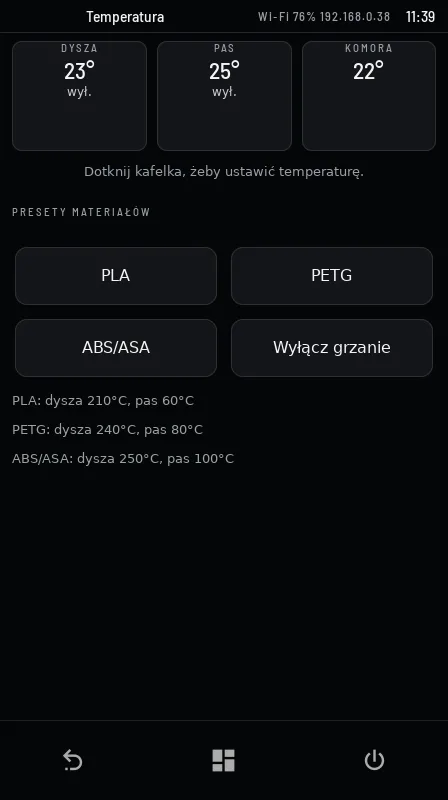
- PLA / PETG / ABS/ASA – heat the nozzle and belt/bed with one tap; Heaters off.
- Bottom menu: Filament, Nozzle, Files, Menu.
- Message bars: SERVICE DUE, a running test, the red remote service bar.
- Screensaver – after 5 minutes of inactivity: a large clock, machine state, a dimmed schematic and temperatures. TOUCH TO WAKE – tap anywhere to return.
- Messages appear as a bubble at the top of the screen and disappear by themselves.
6. Filament and spool
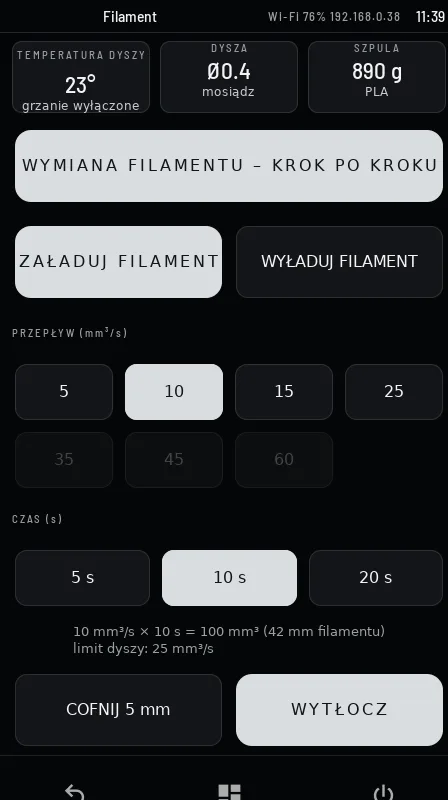
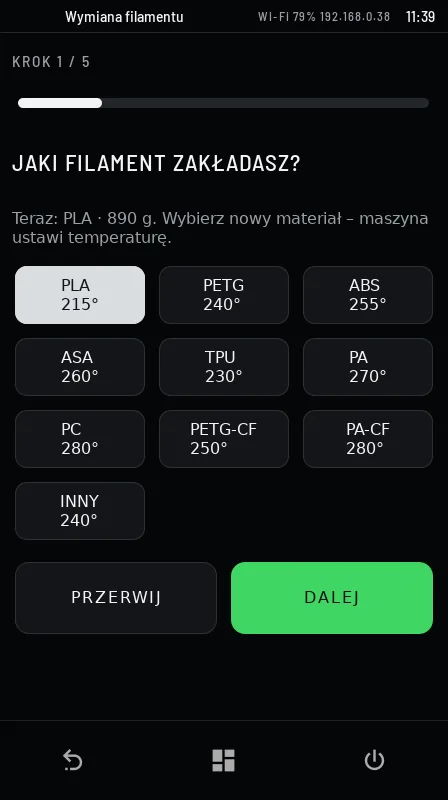
Step-by-step filament change
The easiest way: Filament → FILAMENT CHANGE – STEP BY STEP. The machine guides you through choosing the material, heating, unloading the old filament, loading the new one and setting the spool.
Load manually
- Heat the nozzle – a material preset or the temperature in the NOZZLE TEMPERATURE tile. The nozzle must be at least 180°C.
- Cut the filament end at an angle. A blunt, squashed end often does not enter the extruder.
- Push the filament into the toolhead until you feel the gears, then tap LOAD FILAMENT. The machine feeds 100 mm and purges the nozzle.
- An even strand in the new colour should come out of the nozzle. Remove the excess with pliers – do not touch the nozzle.
Unload
UNLOAD FILAMENT: the machine heats the nozzle, pushes out a little material and retracts the filament. Pull it out gently and secure the spool end.
Extrusion
EXTRUDE feeds filament at the selected flow (FLOW, in mm³/s) for the selected time (TIME). Values above the nozzle capacity (nozzle limit) are blocked. RETRACT 5 mm pulls the filament back.
Spool
The machine subtracts usage after every print and warns before the start if filament may run out. After mounting a new spool choose its weight (NEW FULL SPOOL – 1 kg, 0.75 kg…) or ENTER REMAINING (g).
When something goes wrong
- Filament does not go in – check that the end is cut at an angle and has no bulge.
- Nothing comes out of the nozzle – wait until the nozzle reaches temperature. If still nothing, run the machine test and report the result.
- The extruder clicks – temperature too low or a clogged nozzle. Do not force it.
NFC spool tags (being rolled out) – we are preparing our own NFC stickers and clips that attach to the edge of any spool from any manufacturer. Holding the spool to the machine will set the material and spool status, and Revo OS will keep a filament inventory from it.
9. Printing
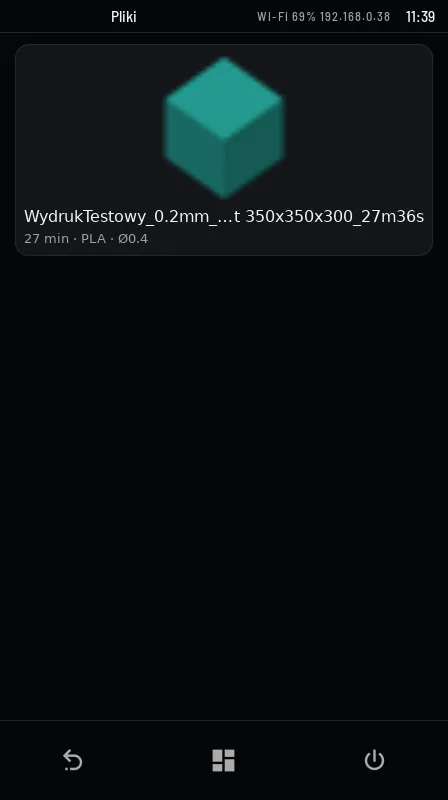
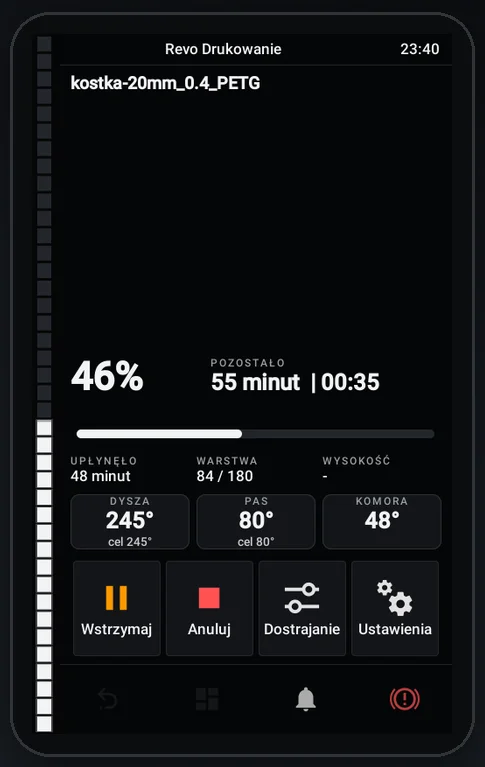
Start
- Send the file from Orca or upload it in Revo Panel (drag the file onto the Files tab).
- On the screen: START PRINT → choose the file (thumbnail, time, material, filament needed) → Print. You can enable timelapse and – on the Belt – the number of copies (series).
- Before printing the machine checks the nozzle (installed versus file – if they differ it asks: Print prints anyway, Cancel cancels) and the filament on the spool.
- PRINT_START: bed heating, gantry leveling, bed mesh, nozzle heating – then printing.
During printing
- Progress, time left (REMAINING) and finish time, time since start (ELAPSED), LAYER, temperatures.
- Camera view on the screen and in Revo Panel.
- Pause / Resume, Cancel (with confirmation), Fine Tuning (speed, flow, Z).
- After the first layer the camera takes a photo (visible in Revo Panel). On a sudden image change (e.g. a detached print) the machine warns: Camera: sudden image change.
After printing
- Belt: hold EJECT (hold) and the belt pushes the print out the front. In a series the belt ejects each copy by itself.
- Rigid bed: remove the print; with a print queue confirm BED CLEAR – PRINT NEXT.
- History, time, filament and cost – Revo Panel → History.
Power loss – the machine does not resume a print after a power cut. The available print-recovery systems do not meet our expectations: during a longer break the nozzle, bed and chamber cool down and the part detaches or cracks. The recommended solution is an external UPS of adequate power – an online (double-conversion) UPS is a good direction, power estimated from the UPS manufacturer's guidance (roughly 6 kVA). This is a suggestion, not a guarantee: Revotech is not liable for the effects of a power outage. Our own backup module is in preparation.
10. Materials and the chamber door
Values are indicative. The Orca profiles for your machine are binding.
| Material | Nozzle °C | Bed °C | Chamber / door | Nozzle | Drying |
|---|---|---|---|---|---|
| PLA | 200–220 | 55–65 | door open | brass | 45–50°C, 4–6 h, when damp |
| PETG | 230–250 | 70–85 | ajar for long prints | brass | 60–65°C, 4–6 h |
| ABS / ASA | 240–265 | 95–110 | closed, warm | brass | 70–80°C, 4 h |
| TPU | 220–240 | 40–60 | door open | brass, slow | 50–55°C, 6 h |
| PA (nylon) | 260–290 | 80–100 | closed, warm | steel / tungsten | 70–80°C, 8–12 h, always |
| PA-CF / PA-GF | 270–300 | 80–100 | closed, warm | hardened steel / tungsten | 80°C, 8–12 h, always |
| PC | 270–300 | 90–100 | closed, warm | steel / tungsten | 80°C, 8 h |
Why the door matters
- PLA, TPU – above about 40°C in the chamber PLA softens in the cold zone of the toolhead and clogs the nozzle. The machine reminds you at the start: “Printing PLA – we recommend an open door”.
- PETG – tolerates more heat, but above about 50°C the risk of clogging grows.
- ABS, ASA, PA, PC – a warm, closed chamber limits shrinkage and layer cracking.
- Chamber too hot – above 70°C with any material. Printing continues and the event goes into the service report. The machine does not stop a print because of the chamber – the decision is yours.
Fibre-filled composites wear the nozzle and extruder several times faster – the machine counts their wear separately. Nylon and PC absorb moisture within hours – print from a dryer.
11. Revo Panel in the browser
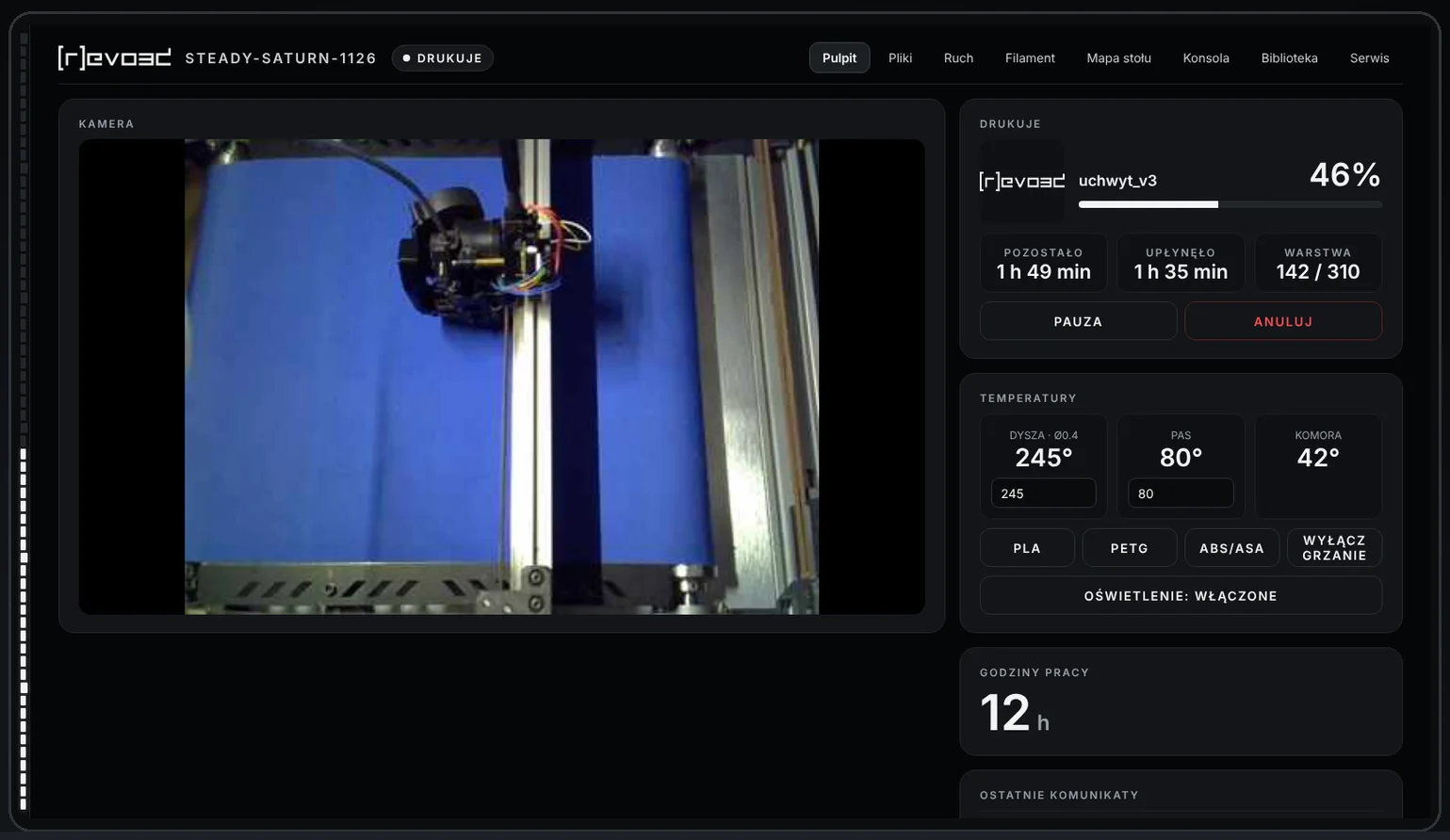
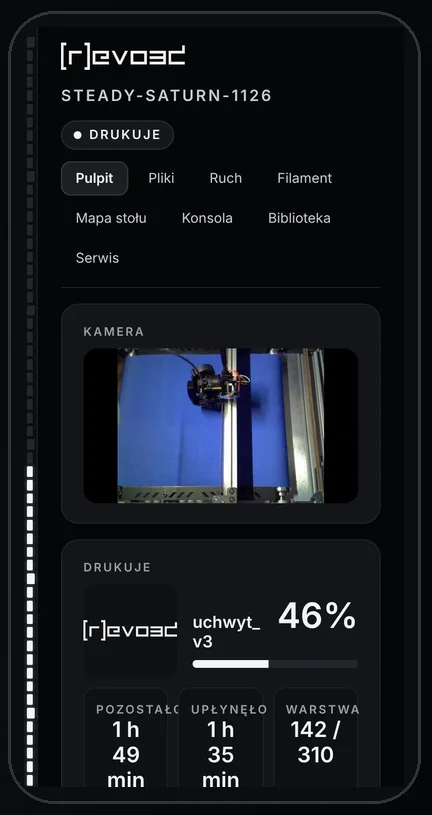
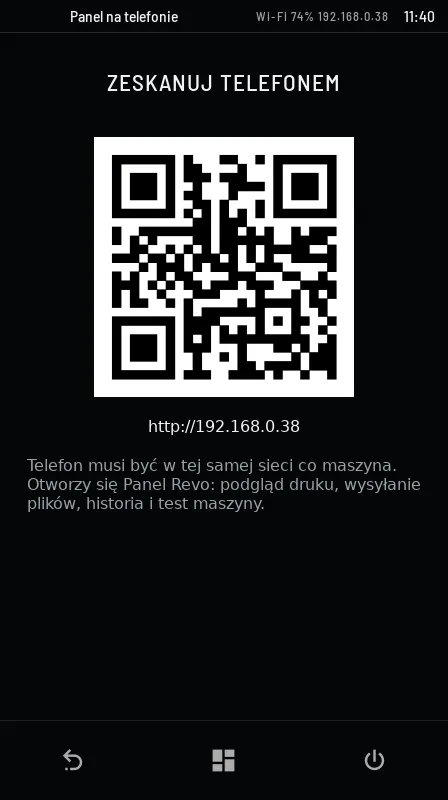
Enter the machine address in a browser (e.g. http://192.168.0.38/ – the address is shown on the screen next to the clock) or scan the QR code. It works on a computer, tablet and phone on the same network. Sign-in is required (SIGN IN): operator + PIN, the shared Operator account without a PIN, “Revotech service” or the code from the screen (first sign-in).
| Tab | Contents |
|---|---|
| Dashboard | Camera, state, progress, temperature hexagons, presets, spool, working hours, recent messages. |
| Files | Files with thumbnails, upload (drag onto the page), start, delete, print queue. |
| History | 12-month statistics, print cost, history with PRINT AGAIN, timelapses, camera photos. |
| Motion | Homing, axes, belt (Belt), E-STOP. |
| Filament | Loading, extrusion in mm³/s, nozzle. |
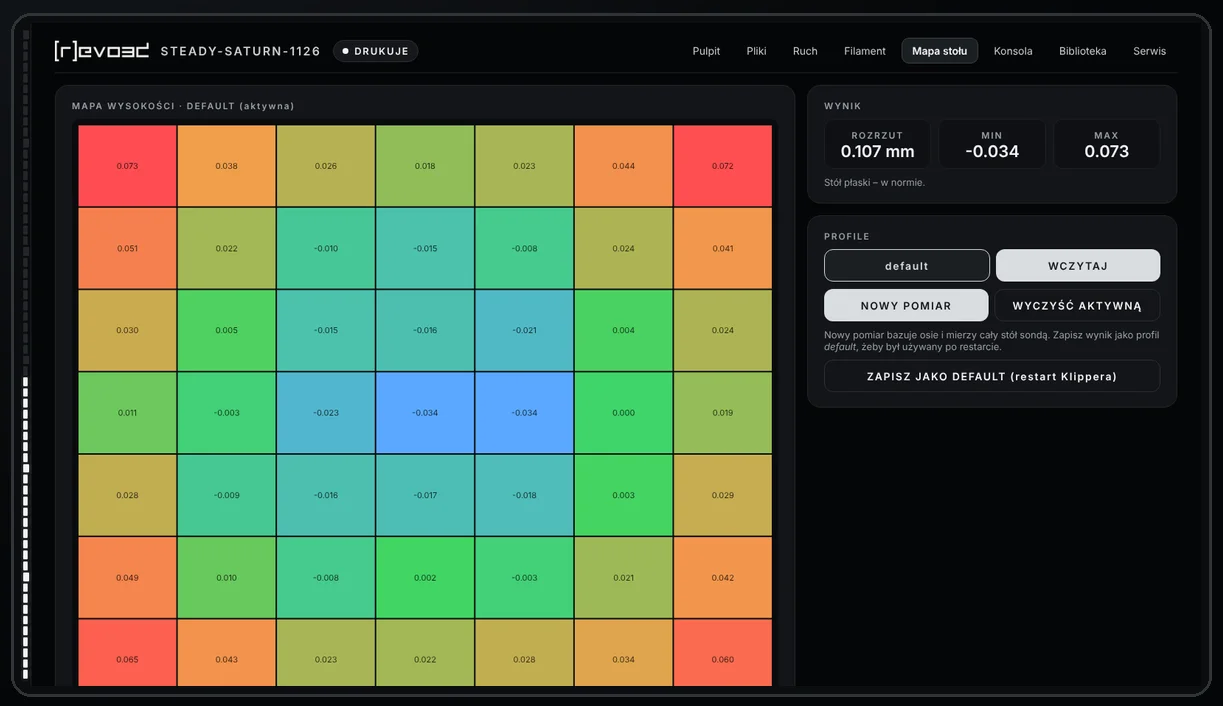
| Bed mesh | Colour flatness map, new measurement, profiles. |
| Console | Machine commands as buttons and Klipper replies (advanced). |
| Library | Revo Library, including the glossary. |
| Service | Contact and REPORT ISSUE, consents, maintenance, machine test, Orca connect commands, operators, license, SYSTEM (versions, self-diagnostics). |
The administrator panel (Mainsail) runs on port 8088 and is intended for Revotech service.
Settings backup
In the Revo Panel, the Service tab has a BACKUP tile. Only the manager and service can see it.
- DOWNLOAD BACKUP – saves one file
revon-<ID>-YYYYMMDD.tar.gzon your computer: calibrations (bed mesh, input shaper, MPC), machine settings, part counters, operators, costs and spool status. Download a backup after the machine is handed over and after every calibration. - RESTORE… – choose a backup file. The Panel shows which machine it comes from and when it was made, and asks you to confirm. Before restoring, the machine saves a copy of its current state. Then Klipper restarts and everyone signs in again. You can restore only when the machine is not printing.
A backup never changes the license, the machine ID or the Revo OS macros – those come with updates.
Backup on the Revotech server: the machine sends changed configuration files to Revotech by itself. After an SD card or Raspberry Pi replacement, Revotech service restores them remotely, also from an old machine to a new one. Counters and operators can be restored only from a file downloaded in the Panel.
12. Operators and access
- The manager (MANAGER) adds and removes operators, resets PINs and sees the Orca API key. An operator runs the machine and prints.
- Two ways of working: named operators (the manager adds them in Revo Panel → Service: name, login, PIN) – the history shows the actual person; or the shared Operator account without a PIN – for companies that do not want to create accounts.
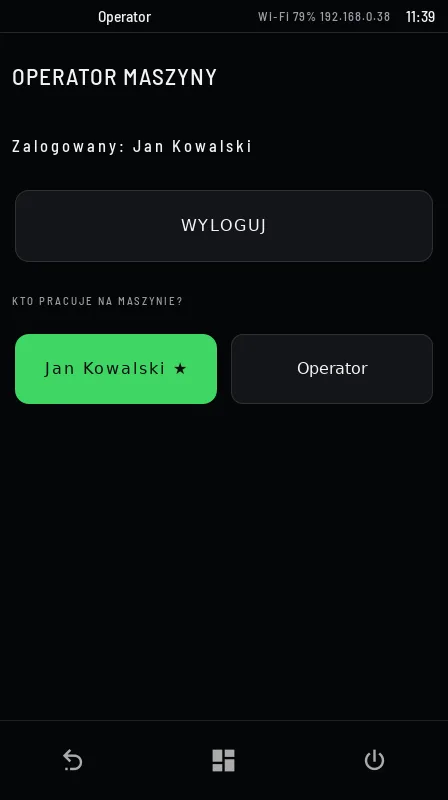
- Signing in on the screen: Menu → More → Operator → choose yourself → PIN. In the browser: login + PIN. A browser session lasts up to 12 h. After 5 wrong attempts – a 15-minute lockout.
- Forgotten PIN: the manager clicks RESET PIN next to the operator. The manager's PIN is reset remotely by Revotech service. After a reset the PIN is 0000, and a new one must be set at the first sign-in.
- Without signing in nobody on the network can control the machine, download files or see the camera. Orca sends files only with the API key.
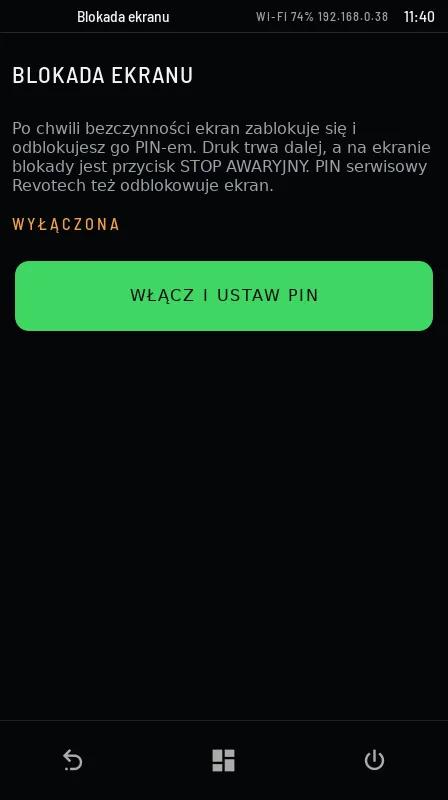
- Screen lock – optional: Menu → More → Screen lock → TURN ON AND SET PIN. The screen locks after inactivity, printing continues and E-STOP always works.
13. Print cost
Revo OS estimates the cost of every print: filament (usage × price per kg) + electricity (measured heater work + electronics × price per kWh). Set prices in Revo Panel → History → CHANGE POWER AND FILAMENT PRICES. You see the last print, the 30-day total and a list of prints with the operator.
14. Menu → More
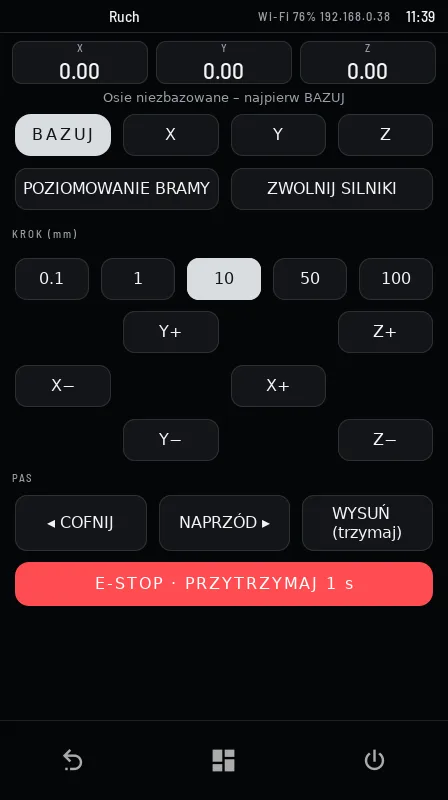
| On the screen | Purpose |
|---|---|
| Move | Homing (HOME), moving axes with the chosen step, belt (Belt), E-STOP. |
| Temperature | Temperatures and material presets. |
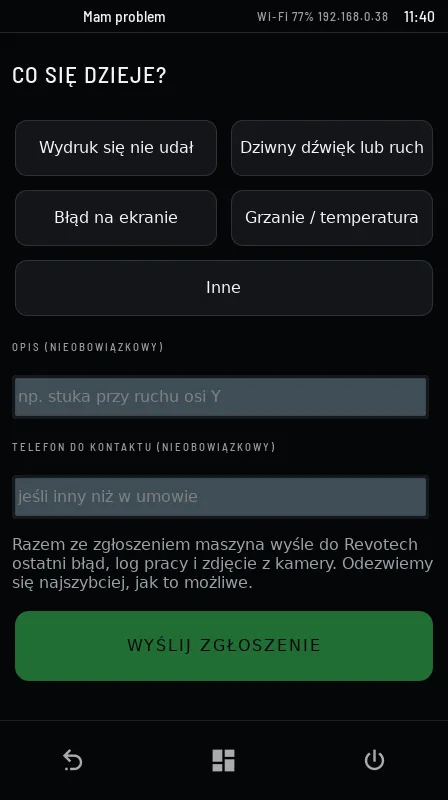
| Report a problem | A service request (type, description, phone) – with the last error, log and camera photo. |
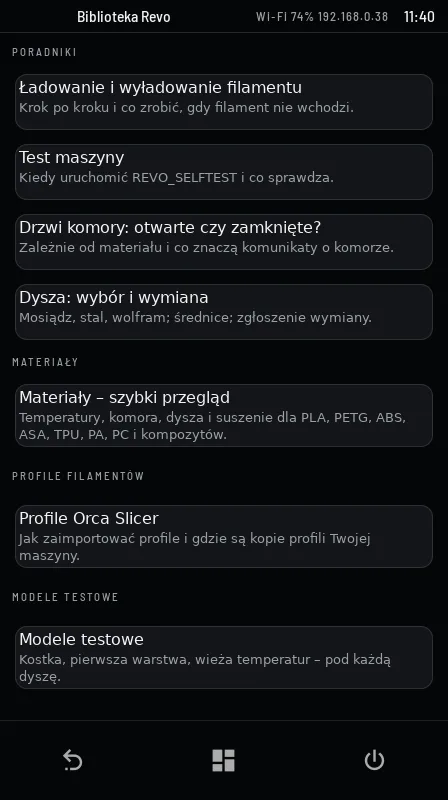
| Revo Library | Glossary, guides, materials, profiles, test models. |
| Service mode | For Revotech service (service PIN). Every entry is reported. |
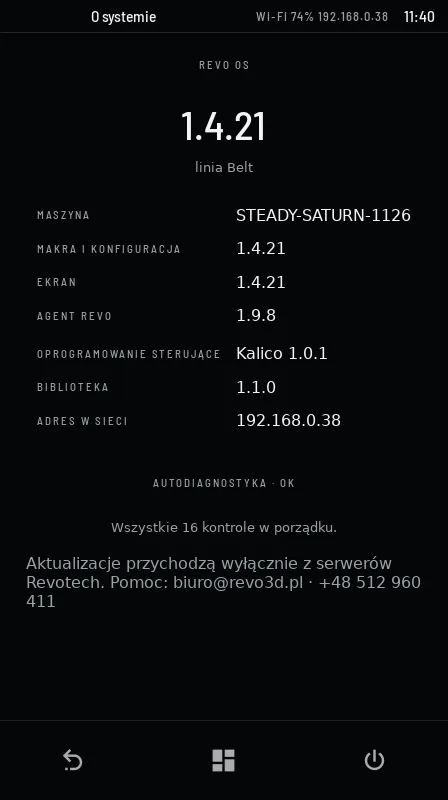
| About system | Component versions, machine ID, network address, self-diagnostics result. |
| Panel on phone | QR code with the Revo Panel address. |
| Nozzle change | Guided nozzle change. |
| Operator | Sign in and SIGN OUT, code for the first browser sign-in. |
| Screen lock | PIN lock after inactivity. |
| Maintenance | Maintenance due dates, confirming completion (DONE). |
| Machine test | Full test with step pictures. |
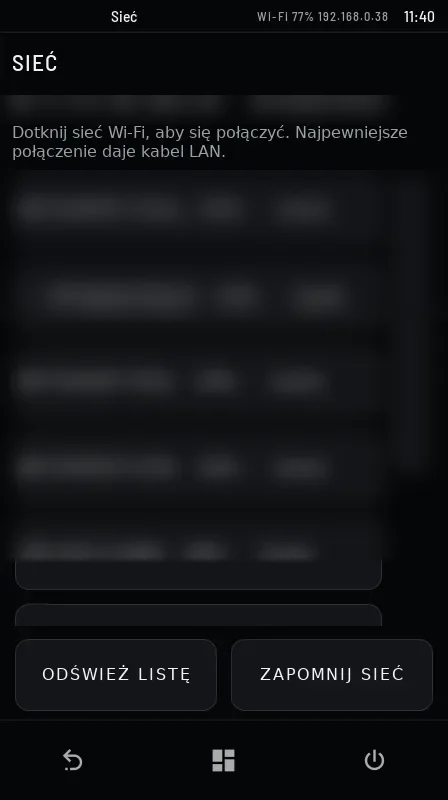
| Network | LAN / Wi-Fi with IP address, network list, password, FORGET NETWORK. |
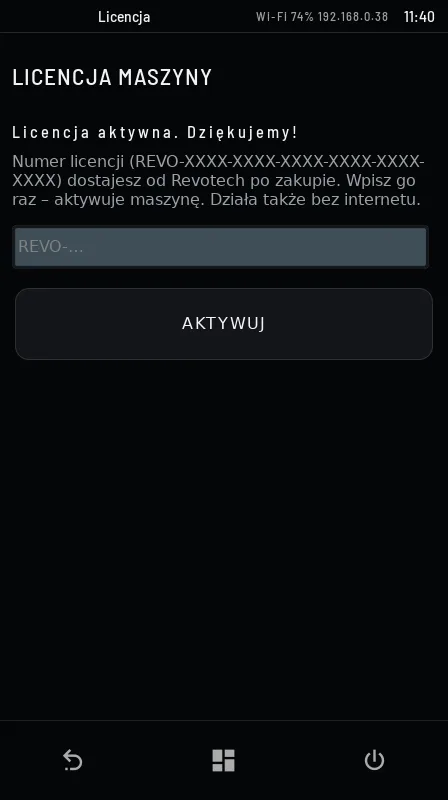
| License | License number – entered once, works without internet. |
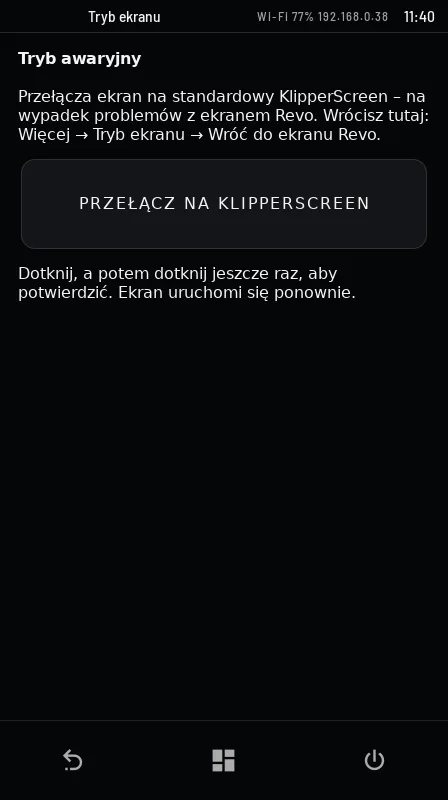
| Screen mode | Emergency switch to standard KlipperScreen and back – in case of screen problems. |
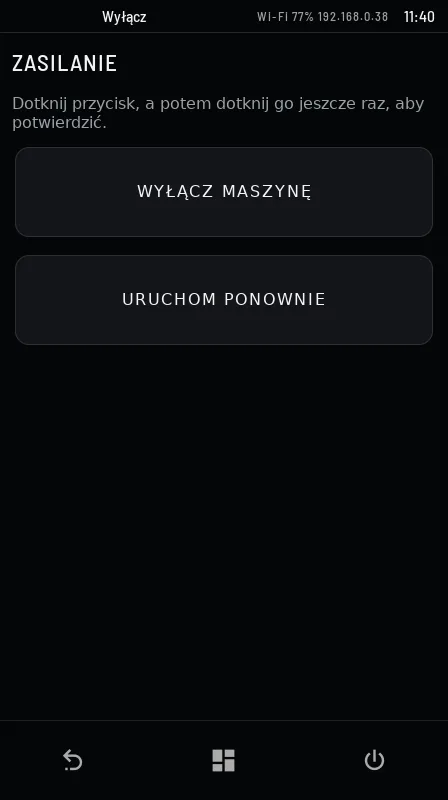
| ⏻ (power) | SHUT DOWN MACHINE or RESTART – confirmed with a second tap, unavailable while printing. Wait 30 s before cutting the power. |