
8. Preparing files – [r]evo Slicer
Prepare print files in [r]evo Slicer – the Revotech slicer built on Orca Slicer and made only for Revon printers. Download it for Windows or macOS from the Software section.
- Installation – the installers are not yet signed by Apple and Microsoft, so the system shows a warning on first launch.
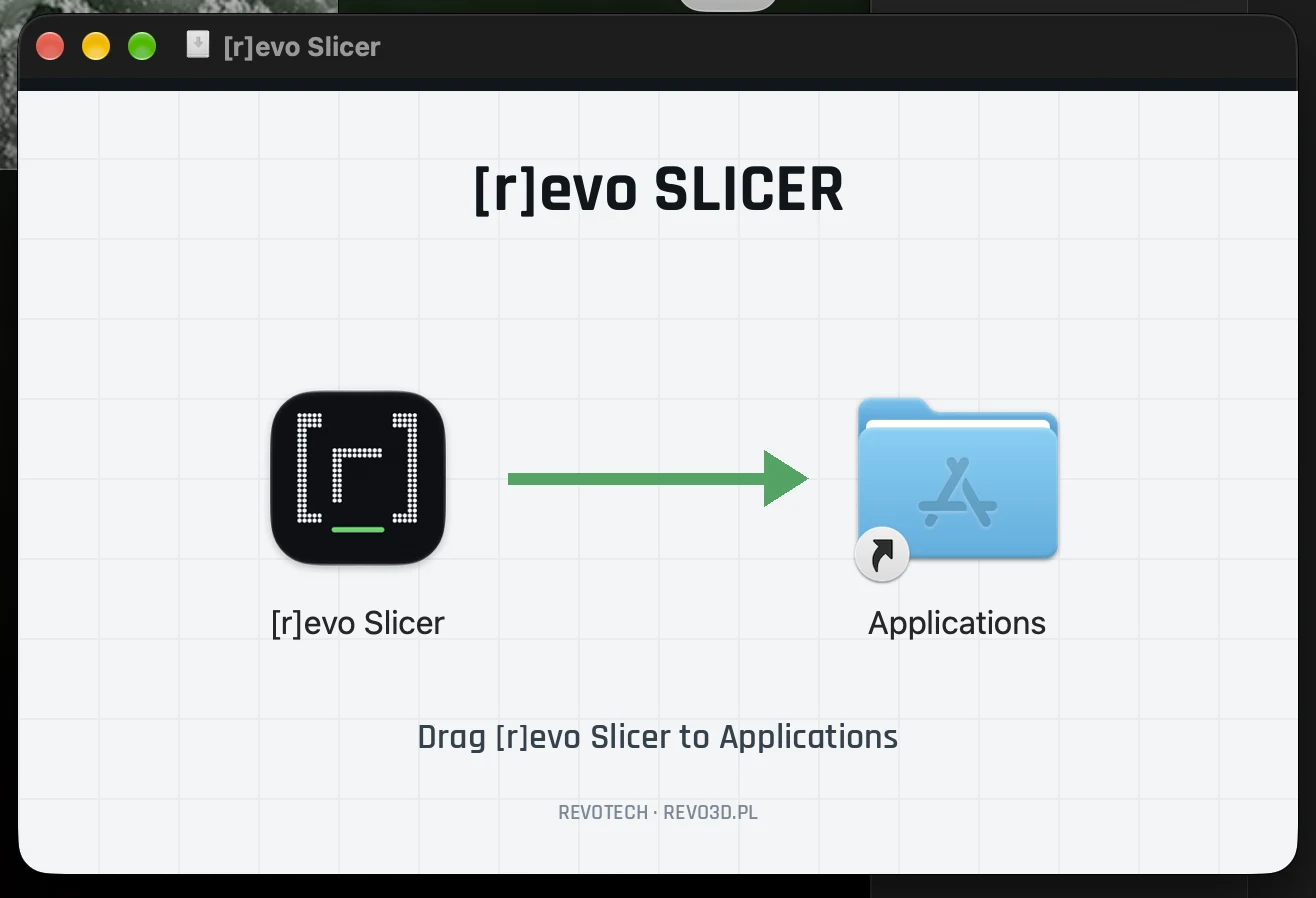
macOS: open the .dmg file and drag [r]evo Slicer onto the Applications folder (picture), then right-click the app → Open → Open.
Windows: in the blue window “Windows protected your PC” click More info → Run anyway. - First launch – no account or sign-in. Revon printers, nozzles 0.4–1.2 mm, Standard and High Flow hotends, smooth and textured plates and Revotech filaments are built in. Choose your machine and nozzle in the wizard.
- Filaments – 358 filament profiles from 40 manufacturers are built in (list: revo3d.pl/filamenty). Profiles made from the manufacturer's documentation need tuning to your spool; profiles marked “✓ Revotech” were calibrated by us on a Revon.
- Connecting to the machine – click Connect to printer. The slicer finds the Revon printers in your local network and shows a thumbnail, serial number, state, IP and nozzle; with several machines, pick yours from the list. Click Connect – no login needed: the slicer gets the access key and sets the machine profile with the fitted nozzle. Enter the manager's login and PIN only if the manager turned on the login requirement (Revo Panel → SLICER LINK).
- Sending – the Print button uploads the file to the machine (and can start printing straight away). The Device tab shows Revo Panel.
- The profiles' start G-code contains the nozzle check and PRINT_START – do not remove these lines.
Orca Slicer instead – close Orca and install the Revotech profiles once (Revo Sync):
Windows (PowerShell): irm https://revo3d.pl/orca/revo-sync.ps1 | iex
macOS (Terminal): curl -fsSL https://revo3d.pl/orca/revo-sync.sh | bash
Then a manager copies the connect command from Revo Panel → Service → SHOW CONNECT COMMANDS and runs it on the computer.
The machine accepts files only from [r]evo Slicer and Orca Slicer. Files from other slicers are removed right after upload – the screen shows File from another slicer removed.